

Download Twinsplay – Free Windows Tool for Dual Window Management & Virtual Desktops
Enhance Your Productivity with Twinsplay: A Smart Desktop Organizer
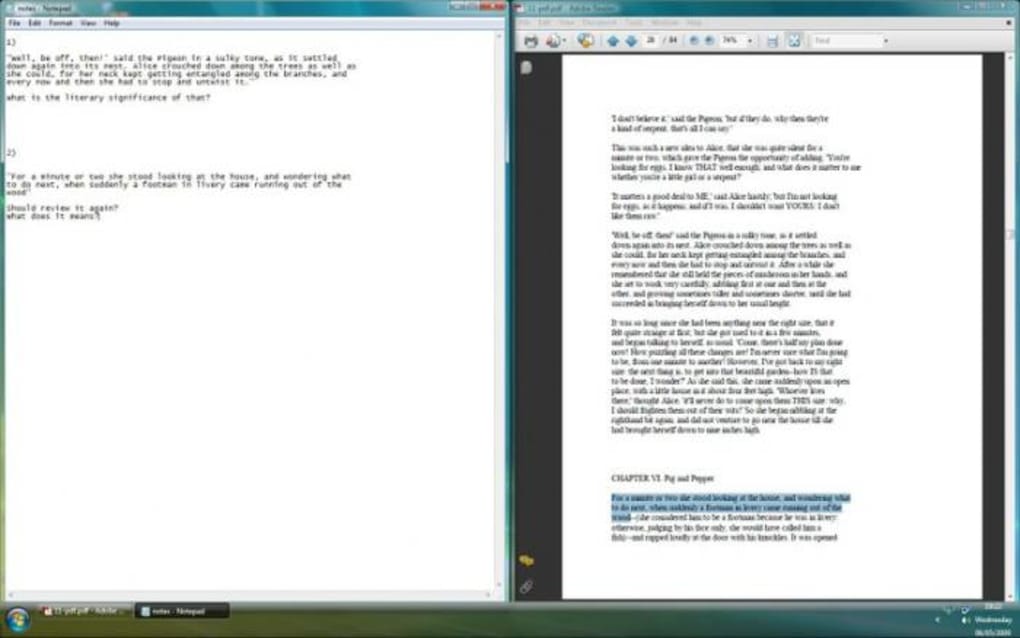
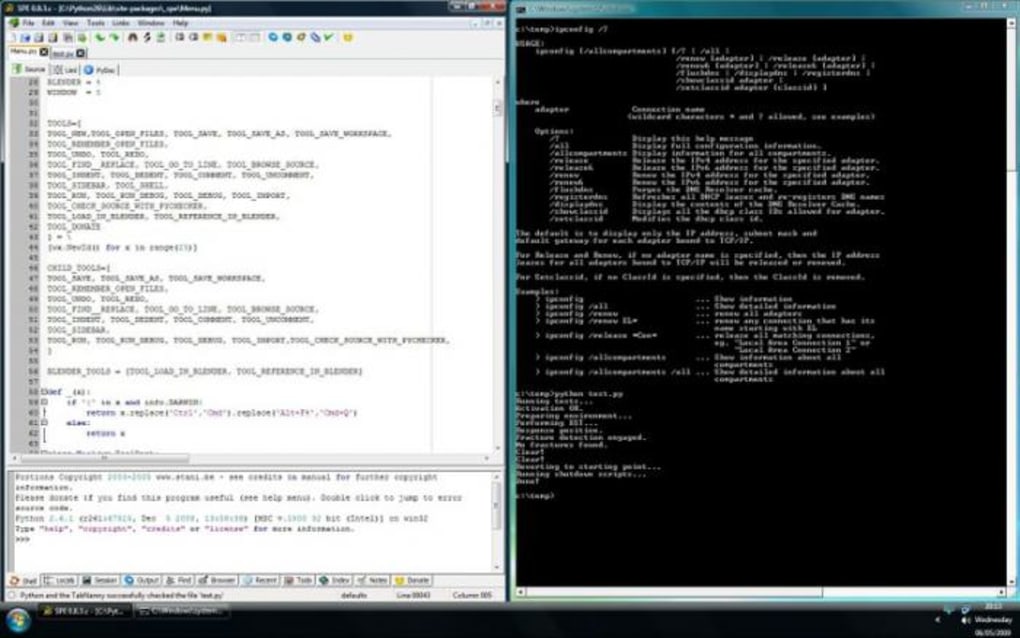
If you're struggling with a cluttered desktop or constantly switching between multiple windows, Twinsplay offers a simple yet powerful solution. This lightweight software is designed to help users manage their workspace efficiently by introducing two core features: dual window tiling and virtual desktops. With just a few clicks or keyboard shortcuts, you can split your screen into two equal halves, allowing you to work on two applications simultaneously—perfect for tasks like writing while referencing a browser tab, coding with documentation open, or comparing spreadsheets side by side.
Twinsplay runs quietly in the background, adding a small icon to your system tray. This minimal footprint ensures it doesn’t slow down your system, even on older or low-end machines. The software is completely free to download and use, with no trial period or hidden charges. Once installed, it supports intuitive hotkey commands—such as Win + Left/Right Arrow—to instantly resize and position windows. You can also use the mouse’s center button to access a quick menu that lets you move windows to the left, right, or a new virtual desktop.
For users who frequently juggle dozens of open windows, the virtual desktop feature is a game-changer. It allows you to create a second desktop where you can relocate specific applications, keeping your main workspace clean and focused. Switching between desktops is seamless, making it easier to organize tasks—like separating work, personal, and creative projects—without the chaos of overlapping windows. Whether you're a student, remote worker, or digital creator, Twinsplay brings order to your digital environment.
Key Features of Twinsplay: Streamline Your Workflow with Smart Tools
- Dual Window Tiling – Instantly split your screen into two equal halves with one hotkey or mouse click, enabling side-by-side multitasking.
- Virtual Desktop Support – Create a second desktop to organize apps and reduce desktop clutter, improving focus and workflow efficiency.
- System Tray Integration – A small, unobtrusive icon in the system tray gives quick access to settings and features without taking up screen space.
- Customizable Hotkeys – Easily assign or modify keyboard shortcuts to move, resize, or switch windows and desktops.
- Low System Resource Usage – Designed to run smoothly on older PCs and low-end hardware, consuming minimal CPU and memory.
- Free to Download and Use – No trial period, no ads, no hidden fees—just a clean, functional tool for better productivity.
One of the standout aspects of Twinsplay is its simplicity. Unlike more complex virtual desktop managers, it doesn’t overwhelm users with unnecessary settings or confusing interfaces. Instead, it focuses on two essential functions and executes them flawlessly. The hotkey system is intuitive, making it easy to adopt even for non-tech-savvy users. For example, pressing Ctrl + Shift + Left Arrow moves the active window to the left half of the screen, while Ctrl + Shift + Right Arrow does the same for the right side.
Additionally, the mouse center button menu provides an alternative for users who prefer not to use keyboard shortcuts. This feature is especially helpful for laptop users or those with limited keyboard access. The software also supports legacy applications, though some older programs on Windows XP may not respond properly to its commands—a minor limitation that doesn’t affect most modern users.
Another advantage is its compatibility with multiple versions of Windows, including Windows 7, 8, 10, and 11. It’s ideal for users who want to boost their productivity without upgrading hardware or installing bloated software suites. Whether you're working from home, in a shared office, or on a budget laptop, Twinsplay delivers real value without compromise.
How to Install and Use Twinsplay: A Step-by-Step Guide
Getting started with Twinsplay is quick and straightforward. First, visit the official download page and click the Download Now button. The installer is small, typically under 2MB, and installs in seconds. During installation, you’ll be prompted to choose your preferred language and accept the license agreement—no third-party software or bundled tools are included.
Once installed, Twinsplay automatically launches and adds an icon to your system tray (usually near the clock). Right-click this icon to access the main menu, where you can enable or disable features, adjust hotkey settings, or open the help documentation. The default hotkeys are already set for optimal usability, but you can customize them under the Settings tab.
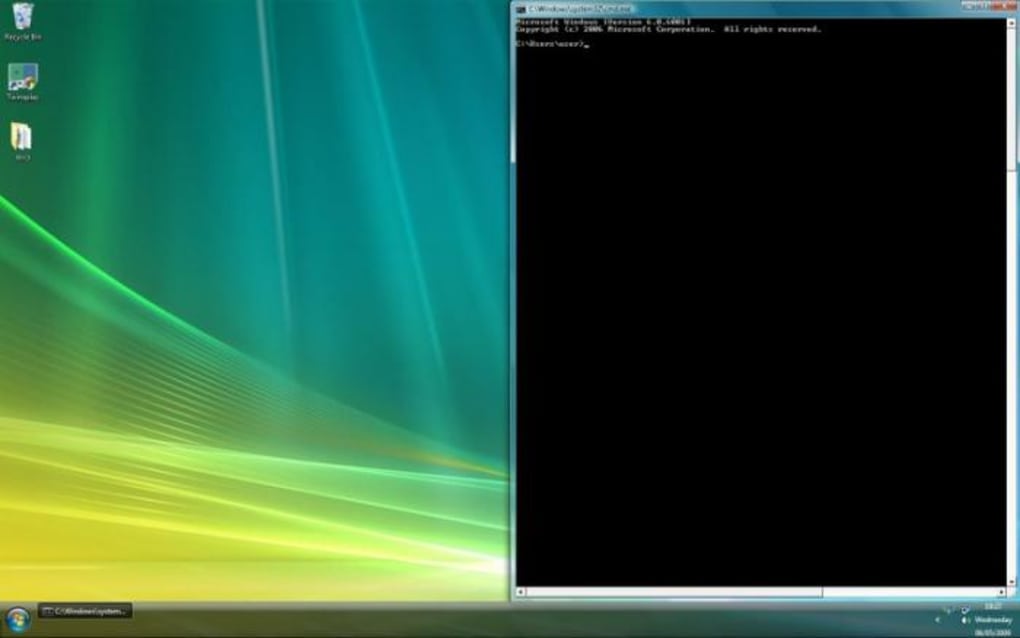
To use the dual window feature, simply open two applications you want to compare or work with side by side. Click on the first window, then press the assigned hotkey (e.g., Win + Left) to snap it to the left half. Then select the second window and press the right hotkey. Both windows will resize automatically to fill half the screen each, creating a clean, balanced layout.
For virtual desktop management, go to the system tray menu and select Move to Desktop 2. This moves the active window to a new virtual desktop. You can switch between desktops using the same menu or assign a hotkey (like Ctrl + F1 or Ctrl + F2). This is particularly useful for separating work tasks from personal browsing or organizing different projects.
Twinsplay also supports automatic window restoration after reboot, so your preferred layout returns each time you start your computer. This feature enhances consistency and reduces setup time. Regular updates are released to fix bugs and improve compatibility, ensuring the software remains secure and stable over time.
Compatibility and System Requirements
Twinsplay is designed to run smoothly on a wide range of Windows systems. It supports Windows 7, 8, 10, and 11, making it accessible to both legacy and modern users. The software is optimized for performance, requiring minimal system resources—typically less than 10MB of RAM and negligible CPU usage. This makes it ideal for older machines, netbooks, or low-spec laptops where resource-heavy applications can cause lag or slowdowns.
It’s important to note that Twinsplay is currently only available for Windows. While there are no official versions for Mac, Android, or iOS, the functionality it offers can be replicated on macOS using built-in Mission Control or third-party tools like Moom or Spectacle. For Android and iOS users, similar multitasking features are built into the operating systems, though they don’t offer the same level of window tiling precision.
For users running older software, such as legacy applications on Windows XP, compatibility may be limited. Some programs may not respond to Twinsplay’s window commands, especially those that use custom window management or are not compatible with modern windowing APIs. However, this is a rare issue and doesn’t affect the majority of modern applications, including Microsoft Office, web browsers, and development tools.
Installation is simple and doesn’t require administrative privileges in most cases. The software runs in the background without interfering with other programs, ensuring a stable and secure experience. It’s also safe from malware and adware, as it’s distributed through official channels and has been tested by users worldwide.
Pros and Cons: Is Twinsplay Right for You?
Pros
- Free to download and use with no hidden costs
- Lightweight and fast, ideal for low-end PCs
- Intuitive hotkeys and mouse menu for easy navigation
- Supports dual window tiling and virtual desktops
- Minimal system resource usage
- Stable and secure with regular updates
Cons
- Only available for Windows (no Mac, Android, or iOS version)
- Some legacy programs on Windows XP may not respond properly
- Limited customization compared to advanced desktop managers
Frequently Asked Questions (FAQ)
Final Verdict: A Must-Have Tool for Efficient Windows Users
If you're looking for a reliable, free, and secure way to manage your desktop space and improve multitasking, Twinsplay is an excellent choice. With its dual window tiling and virtual desktop features, it brings a professional-level workflow to everyday users without the complexity or cost. Whether you're a student, remote worker, or casual user, this lightweight tool helps reduce digital clutter and boost productivity.
Its minimal system impact, intuitive design, and zero-cost model make it a standout in the world of PC utilities. While it lacks support for Mac and mobile platforms, its Windows-focused approach ensures deep integration and stability.
Download Twinsplay today and transform your desktop into a clean, organized, and highly functional workspace. Say goodbye to window chaos and hello to seamless multitasking!







